 Anvil Tools
One illustration, three source formats
We converted the same synthetic 640 × 400 illustration using the Anvil Tools Image to PDF tool. The source variants were PNG, JPEG at quality 85, and lossless WebP. Each format was converted separately in Chrome and Edge. The downloaded PDFs were then reopened with pypdf, an inspection library separate from the tool's pdf-lib conversion engine.
The illustration was generated from shapes and text for this experiment. It has a transparent outer margin in PNG and WebP. The JPEG was flattened onto white because JPEG does not carry an alpha channel. These deliberately different transparency conditions matter when interpreting the PDFs.
Download the PNG, JPEG, and WebP. The recorded browser results include browser versions, input sizes, output sizes, and hashes. The independent inspection records page dimensions and embedded image details.
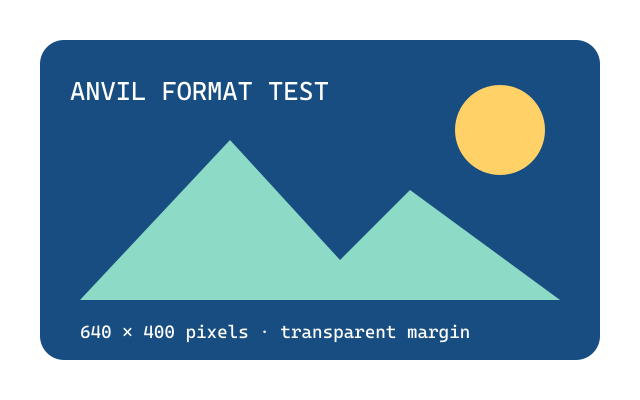
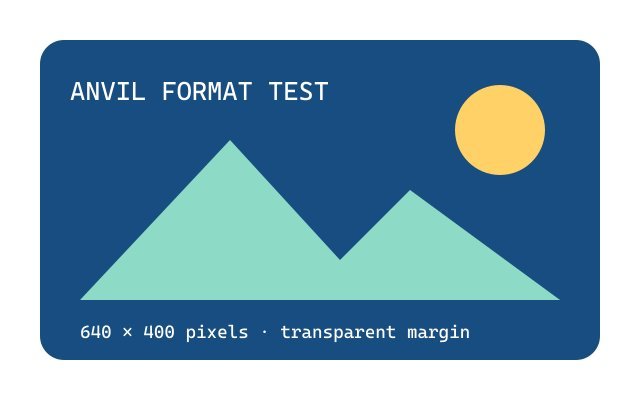
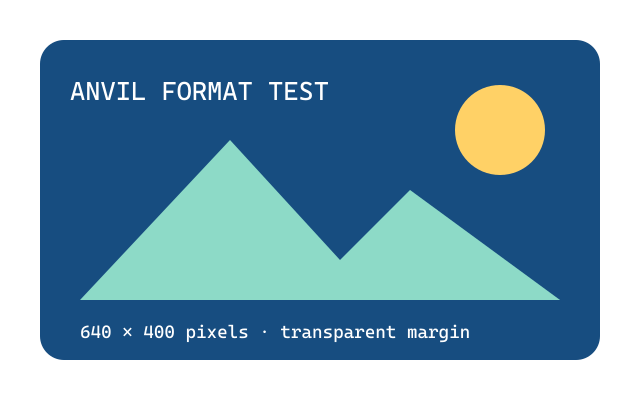
The actual downloads
| Source | Recorded PDF | Page count | Page size |
|---|---|---|---|
| JPEG | Open JPEG conversion | 1 | 640 × 400 points |
| PNG | Open PNG conversion | 1 | 640 × 400 points |
| WebP | Open WebP conversion | 1 | 640 × 400 points |
Each PDF contained an embedded image and no selectable text extracted by the inspection library. The original picture includes words, but those words are pixels. This tool does not perform optical character recognition.
The table links to Chrome's downloads. Edge's separately produced JPEG PDF, PNG PDF, and WebP PDF are also available; all six passed the same inspection checks.
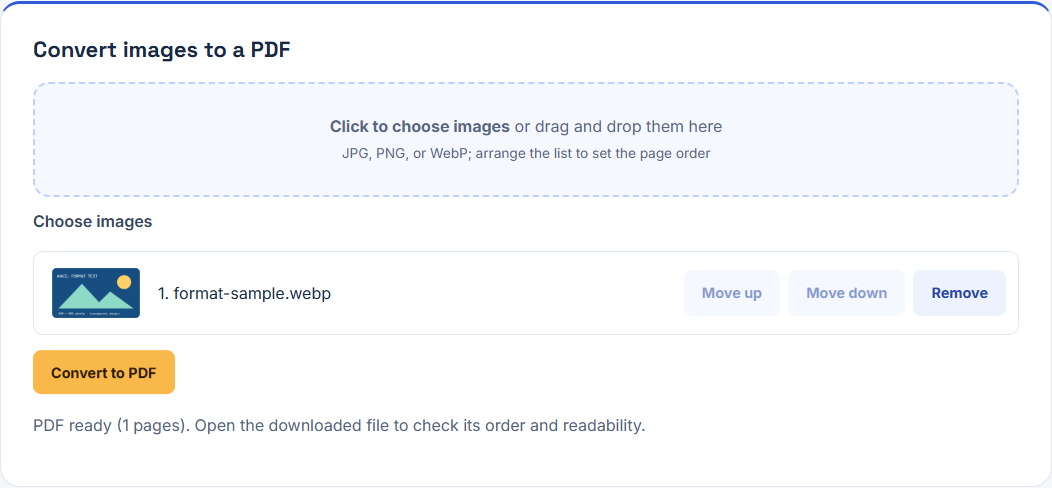
Pixels become PDF points
The tool uses the decoded image width and height directly as its PDF page dimensions. The 640 × 400 pixel source therefore becomes a 640 × 400 point page. At 72 points per inch, that is approximately 8.89 × 5.56 inches. It is not an A4 or US Letter page, and the source format does not change that calculation.
The page image is drawn at its full width and height. In this experiment no crop or page-size fit was applied. If a document requires a fixed paper size, prepare images with the intended dimensions or use a PDF editor that explicitly offers that layout. Do not assume a photograph's DPI metadata will select the paper size here.
What transparency tells us
The transparent PNG and WebP sources retained image transparency through an embedded soft mask in the recorded PDFs. The flattened JPEG had no transparency to preserve. Most PDF viewers display an otherwise unpainted page as white, so a transparent margin can look white when opened even though the embedded image has alpha information.
The converter's white color parameter does not create a white background rectangle behind an image. Consequently, this run does not establish that transparent pixels are permanently flattened onto white. If a receiving workflow requires a specific background color, flatten the source deliberately and check the exported file in that workflow.
WebP is first decoded by the browser and drawn to a canvas, then converted to PNG for embedding. The output therefore contains a decoded image representation; the original WebP compressed stream is not embedded directly. The independent inspection checked image dimensions and the presence of a transparency mask rather than relying on file extensions. It did not establish pixel-perfect equality or color-profile preservation.
File size is not a quality ranking
The recorded data lists the sizes of all three sources and all six PDF downloads. Those measurements are specific to this illustration and these encoder settings. PNG and lossless WebP are useful for sharp shapes and transparency. A JPEG can be efficient for photographs, but quality 85 is a lossy encoding choice; converting it into a PDF does not restore discarded detail.
Do not infer that one format always gives the smallest PDF. A PDF can reuse JPEG compression, while a decoded WebP takes a different embedding route. Image content, dimensions, alpha, and encoder settings affect the outcome. Use the downloadable files to inspect the small text and edges at the zoom level your audience will use.
Reproduce and check your document
Open the tool and select one fixture. Convert it, then open the fresh download. Confirm one page, landscape orientation, uncropped content, and readable text in the image. Repeat with the other formats. If you select all three together, each becomes a separate page; arrange their order before exporting.
The October 6, 2026 runs cover a modest synthetic illustration. They do not establish memory limits, support for every camera format, preservation of color profiles, or behavior on physical phones and printers. Keep original files until the final document has been checked. The PDF workflow guide explains how to combine this output with existing documents and review the resulting page order.