 Anvil Tools
A finished PDF needs to do more than open. Its pages should appear in the expected order, photographs should remain readable, and the person receiving it should be able to find the information they need. A browser tool can handle a small document assembly job, but the final review still belongs to you.
This guide follows one example: preparing an application with a one-page cover sheet, a two-page application, and three supporting photographs. The target is one six-page PDF. The same checks apply to invoices, classroom handouts, travel documents, and scanned correspondence.
Start with the recipient's requirements
Check the submission instructions before changing files. Some services want one combined document; others require separate uploads for each document type. Record any file-size limit, page-size requirement, naming convention, and restriction on password protection. Combining everything into one file can make an otherwise correct submission unusable when the receiver expects separate attachments.
Write down the intended sequence. For our example, the cover sheet is page 1, the application occupies pages 2 and 3, and supporting photographs start at page 4. That small page plan gives you something concrete to compare against the download. If the recipient requires A4 or Letter pages, note that requirement too: converting an image into a PDF does not by itself choose a standard paper size.
Keep the source files in a working folder and leave the originals unchanged. Filenames such as 01-cover.pdf and 02-application.pdf can help you select them, but a filename does not guarantee the order in which a browser's file picker supplies files. Always check the tool's displayed selection.
Prepare photographs before conversion
Open each supporting photograph at a readable size. Check that the whole document is visible, the text is in focus, and glare does not hide a signature, date, or reference number. Retake a poor photograph when possible. Enlarging a blurred image usually creates a larger blurred page.
Rotate images so readers will not need to turn their heads. Crop unnecessary desk space in an image editor, while retaining document edges and any information the recipient needs. When editing a photograph of a document, clarity matters more than decorative effects. Keep a copy of the source so an aggressive crop or contrast adjustment can be undone.
Review private information before conversion. A PDF merger is not a redaction tool. Placing a black rectangle over a page in another editor may leave underlying text or other information accessible. If redaction is necessary, use a method designed to remove the information and inspect the resulting file. Do not assume that merging pages removes metadata, hidden content, or identifying details.
Convert the images into pages
Open Image to PDF and select the prepared images. The tool creates one page per image, in the displayed list order. Use Move up and Move down beside each thumbnail to arrange the pages, or Remove to discard an unwanted image. These controls work with a keyboard as well as a pointer. Crop and rotate the source images before adding them; those edits are not provided by this tool.
PNG and JPEG images are embedded directly. Other supported browser image formats are decoded and converted to PNG before embedding. A filename extension alone does not establish that a browser can read the image. If one image fails, try opening it normally and exporting a supported copy, keeping the original available.
The page dimensions follow the image dimensions. This means a tall photograph and a wide screenshot can produce different page proportions. The tool does not add an A4 or Letter layout, margins, or a fitted print template. If uniform paper dimensions are a submission requirement, prepare the layout with an application that offers those settings and inspect its output.
Download the three-page supporting document. Open it in a PDF reader and compare the pages with the source photographs. Check small text, handwriting, document edges, orientation, and the sequence. Use the reader's actual-size view as well as its fit-to-page view; a readable thumbnail does not establish that the details are clear.
An image PDF remains an image document. This conversion does not perform optical character recognition or automatically add selectable text, reading order, or accessibility tags. A recipient who requires searchable text or an accessible PDF needs a workflow that supplies those features.
Merge the documents in the planned order
Open PDF Merge. Select the cover sheet, application, and converted supporting document. The merger copies all pages from each selected PDF in file order. The current tool does not offer individual page ranges or a page-by-page reorder interface.
Inspect the numbered file list. Our intended order is the one-page cover, the two-page application, and then the three-page supporting document. Use Move up or Move down to change a file's position, and Remove to exclude a document. Moving a file moves its whole group of pages; it cannot rearrange pages inside that PDF. Do not rely on the order in which files happen to appear in your operating system's folder view.
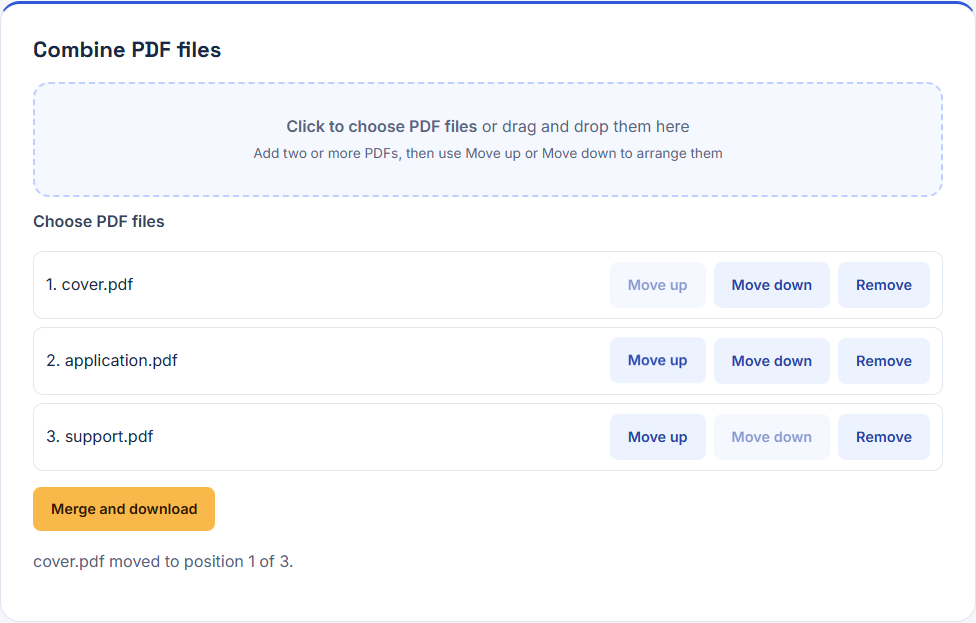
The screenshot uses a separate four-page test fixture: one cover page, two application pages, and one support page. Its downloaded PDF was reopened with a PDF parser to verify the four-page count and the source groups' order. This tests the assembly behavior on simple sample files; the six-page application workflow in this guide still needs its own final review.
Merge and download the output. The page-count check is simple: 1 + 2 + 3 = 6. The application must begin on page 2 and the supporting photographs on page 4. Open the page thumbnails in a reader to check those boundaries, then inspect the pages themselves. A successful download proves that a file was generated; it does not prove that the submission order is correct.
Treat protected and interactive PDFs carefully
The current merger does not provide a password-entry or decryption workflow. If an authorized document is protected and cannot be processed, obtain an appropriate unencrypted copy from its owner or export one using software and permissions you are entitled to use. Renaming the file does not remove encryption.
Keep signed originals. Do not assume that combining a digitally signed document into a new file preserves the validity or meaning of its signature. A scanned picture of a handwritten signature and a verifiable digital signature are different things. If a recipient requires the original signed PDF, send it in the required form rather than silently substituting a merged derivative.
Interactive forms, bookmarks, hyperlinks, annotations, attachments, and accessibility information deserve separate checks. Copying pages is not a guarantee that every document-level feature will behave as it did in the source. For a filled form, inspect the visible answers and try the relevant fields in the output. For a document that depends on attachments or navigation, use a PDF application suited to preserving and verifying those features.
Manage size without sacrificing legibility
Large photographs can produce large PDFs and consume substantial browser memory. Close unnecessary tabs and use smaller batches when a device struggles. The tools do not offer a dedicated PDF compression control or a guaranteed maximum output size.
If an output exceeds the recipient's upload limit, first identify which images contribute unnecessary size. Export appropriately sized working copies from an image editor, convert them again, and compare the smallest important text before accepting the result. Avoid repeatedly saving the same JPEG through several editing cycles; keep a high-quality original and make a new working copy from it.
Do not judge quality by file size alone. A tiny unreadable page is a failed result, and a larger clear document may still be unacceptable to a strict upload portal. Both requirements need to be met. When they cannot be met with this workflow, use a document application with explicit compression and page-layout controls or ask the recipient about alternative submission arrangements.
Review the actual download
Use this review on the file you will send:
- Confirm the total page count and the start of each source document.
- Check orientation, page edges, and small text on every page.
- Inspect any forms, annotations, links, or other features the recipient needs.
- Compare file size, naming, and page dimensions with the submission instructions.
- Open the saved file again from your downloads folder to confirm you are sending the final version.
Give the final file a clear name, such as application-complete.pdf, while keeping the source files separate. If the portal provides a preview after upload, inspect that preview too. A receiver's processing step can affect how a file is presented, and a local check cannot establish that a particular service accepted it correctly.
Understand where processing happens
These PDF tools process the selected documents in the browser. Their implemented conversion and merge flows do not send the selected file contents to an Anvil Tools document-processing server. Loading a web page still involves network requests for the page and supporting assets, and local processing is not a promise of anonymity, metadata removal, or deletion from your device.
Keep downloaded copies and original files according to your own retention needs. Clearing a tool input is different from deleting files in your downloads folder or cloud backup. See the Privacy Policy for the site's data practices and tool-specific distinctions.
Resolve failures at the step that caused them
If image conversion fails, test one image first. Check that it opens in the browser and try a supported PNG or JPEG copy. If merging fails, open each source PDF separately, check for protection, and try a smaller set. If the result has the wrong order, return to the displayed selection rather than repeatedly merging an unchanged list.
When the result opens but looks wrong, compare it with the original at the same scale. That separates a bad source photograph from an assembly problem. Preserve the sources and record the specific failing step before trying a different application.
The tools use pdf-lib for PDF creation and page copying. The practical limits above describe the current Anvil Tools interface; they should not be read as a list of every feature available in that library or every PDF application.
Download the recorded four-page fixture
The screenshot uses a separate four-page example, rather than the six-page application scenario. Download the cover, the two-page application, and the support page. Arrange those files in that order and compare the recorded four-page result.
Its page sizes are 420 × 594, 400 × 600, 401 × 601, and 360 × 480 PDF points. Mixed dimensions are intentional: merging does not standardize page sizes. Check the retained page text and dimensions after downloading. Interactive forms, signatures, and bookmarks need separate checks.